
















5 Must-Do Security Steps for Your New WordPress Site
Your new WordPress site is live. Congratulations! While you’re focused on adding content and perfecting the design, there’s an urgent task you cannot ignore: security. Many new website owners believe hackers only target large, established sites. This is a dangerous mistake. Automated bots constantly scan the web for new, unprotected WordPress installations, making your site a prime target from the moment it goes live.
The good news is that you can prevent the vast majority of these attacks with a few simple actions. You don’t need to be a tech expert or spend hours configuring complex settings. This guide will walk you through five essential security steps you can complete in just a few minutes. Taking these actions now will protect your hard work, your visitors, and your business from common threats.
Your 5-Minute WordPress Security Checklist
Follow these steps immediately to build a strong defense for your brand-new website.
1. Secure Your Login Page with WP Login Lockdown
Your WordPress login page is the front door to your website. Leaving it unprotected is like leaving your house unlocked. Hackers use automated programs, known as bots, to try thousands of username and password combinations in what’s called a “brute force attack.” The easiest way to stop them is with a login lockdown plugin.
We recommend WP Login Lockdown as the first—and only—security plugin you need to install. It’s super simple and works all by itself, as soon as you turn it on. Here’s what it does, in easy words:
- Blocks bad guys by checking their address (IP blocking): If someone tries to break in too many times, WP Login Lockdown locks them out so they can’t keep guessing.
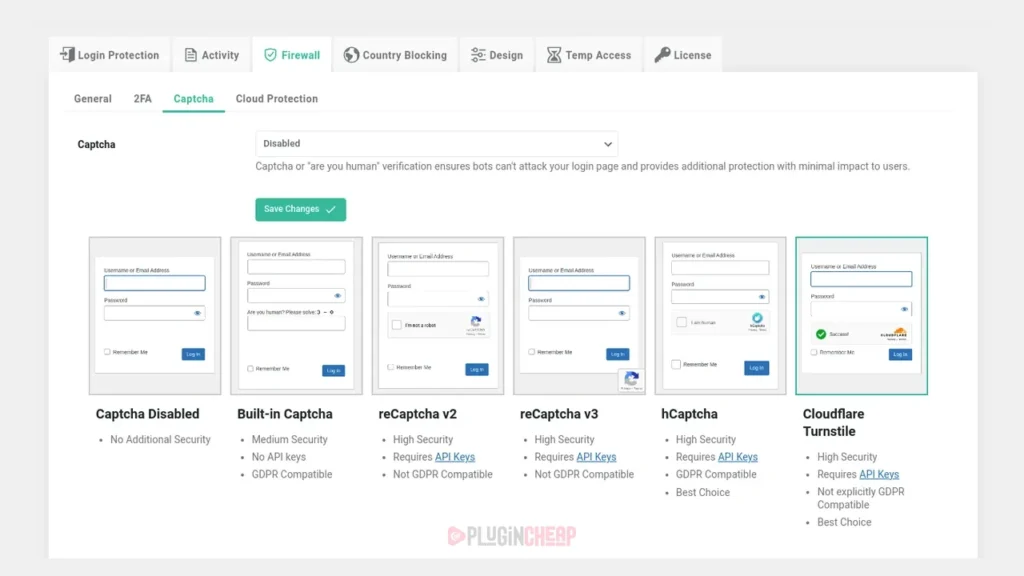
- Uses smart tests (GDPR-compliant Captchas) that only let real people in: Bots can’t pass these, but real visitors don’t even notice most of the time—so it stays easy for everyone!
- Has a firewall: Think of it like a fence that stops troublemakers before they even get near your site.
- Gives you two-factor authentication (2FA): This means only someone who knows your password and can use your phone or email can get in. It’s like needing two keys to open a locked door.
You don’t have to be a tech whiz—just install it and it will start protecting your website right away!
To get all the powerful security features—including IP blocking, bot protection, firewall, 2-factor authentication, Cloudflare integration, login page design options, and more—activate WP Login Lockdown Pro. You can unlock the full potential of this plugin for just $4.99 at plugincheap.net, with lifetime access and updates included. This Pro version makes it easy to keep your site, and all your clients’ sites, safe with user-friendly controls, proactive analytics, global blacklists/whitelists, and GDPR-compliant Captcha, all wrapped into one super-fast, simple solution—no extra plugins needed!
Here’s how to install it:
- From your WordPress dashboard, go to Plugins > Add New.
- In the search bar, type “WP Login Lockdown.”
- Find the plugin in the search results and click Install Now.
- After it installs, click Activate.
That’s it. The plugin starts working immediately with its default settings, which are perfect for most new sites. You’ve just blocked the most common type of WordPress attack.
2. Create a Strong, Unique Password
The password you chose during installation is your primary line of defense. A weak password like “password123” or “mysitename” can be cracked by bots in seconds. Your administrator password must be strong and unique.
A strong password includes:
- At least 12 characters
- A mix of uppercase and lowercase letters
- Numbers
- Special characters (like !, @, #, or $)
Avoid using personal information like your name, birthdate, or business name. If you have trouble remembering complex passwords, consider using a password manager. These tools generate and store highly secure passwords for you.
How to update your password:
- In your WordPress dashboard, go to Users > Profile.
- Scroll down to the “Account Management” section.
- Click Set New Password. WordPress will suggest a strong password for you, or you can create your own.
- Click Update Profile to save your new password.
3. Change the Default “admin” Username
In older versions of WordPress, the default administrator username was “admin.” Hackers know this, so it’s the first username they try during a brute force attack. If you used “admin” as your username during setup, you’ve already given attackers half of your login credentials.
You cannot simply rename the “admin” user, but you can easily replace it by creating a new administrator account and deleting the old one.
Here’s how to do it safely:
- From the dashboard, go to Users > Add New.
- Create a new user with a unique username (do not use “admin” or your site name).
- Enter a secure password and your email address.
- Under the “Role” dropdown menu, select Administrator.
- Click Add New User.
- Now, log out of WordPress and log back in with your new administrator account.
- Go to Users > All Users.
- Hover over the old “admin” user and click Delete.
- WordPress will ask what to do with the content created by the “admin” user. Select Attribute all content to: and choose your new administrator account from the dropdown.
- Click Confirm Deletion.
4. Update WordPress, Themes, and Plugins Regularly
WordPress and its community of developers regularly release updates that include new features and, more importantly, security patches. Outdated software is one of the biggest security vulnerabilities a site can have. Hackers actively seek out sites running older versions of WordPress, themes, or plugins with known flaws.
Keeping your site updated is a critical and simple security habit. WordPress makes this easy by showing notifications on your dashboard whenever an update is available.
Check for updates here:
- From your dashboard, go to Dashboard > Updates.
- This screen will show you if the WordPress core software, your plugins, or your themes need updating.
- Run the updates as soon as they become available. Most take only a single click.
To make things even easier, you can enable auto-updates for plugins and themes you trust. This ensures your site is always protected against newly discovered vulnerabilities without you having to log in and do it manually.
5. Unlock Full Security Features with WP Login Lockdown Pro
WP Login Lockdown Pro gives your website superhero powers to keep it even safer. Here’s what it can do, explained simply:
- Blocks bad people before they get in: If someone tries to break into your site, the plugin checks their address and shuts the door on them so they can’t keep trying.
- Stops robots and fake users: There are lots of bots (like robots but on computers) that try to sneak in. With bot protection and special “captcha” tests that only real people can pass, these bots can’t get through.
- Lets you decide who can visit: The plugin gives you smart lists—one for blocking troublemakers (blacklist) and one for letting good people in (whitelist). You can make these lists for all your sites!
- Watches and tells you what’s happening: With easy-to-understand reports, you can see if someone tried to break in and block them from wherever they are.
- Makes everything simple: You don’t need to be a computer expert—the controls are easy to use, so anyone can keep their site safe.
- Keeps your privacy safe: The captcha is friendly and follows privacy rules (GDPR), so it won’t bother real people or collect too much info.
With WP Login Lockdown Pro, your website has a strong shield around it—and you only have to set it up once!
Why go Pro?
- Access to premium features that offer deeper, all-around protection
- Priority updates to guard against the latest threats
- Enhanced support and configuration options
You can activate the genuine WP Login Lockdown Pro version for just $4.99 at plugincheap.net. This simple upgrade ensures your new website has the best security available—without the need to install multiple plugins or deal with unnecessary complexity.
How to activate WP Login Lockdown Pro:
- Visit plugincheap.net and purchase the Pro version.
- Download the plugin files and upload them to your WordPress site.
- Activate the plugin and enter your license key to unlock all premium features.
With WP Login Lockdown Pro activated, your WordPress site stays protected—even as your business grows.
While WP Login Lockdown protects your login page, a general security plugin provides a broader shield for your entire site. These plugins act as a firewall, scan for malware, and monitor your site for suspicious activity. For a new user, a simple, set-it-and-forget-it solution is best.
A great starting choice is Wordfence Security or Sucuri Security. Both have free versions that offer excellent baseline protection right out of the box.
How to install a security plugin:
- Go to Plugins > Add New.
- Search for “Wordfence” or “Sucuri.”
- Click Install Now and then Activate.
- Follow the simple setup wizard. The default settings are designed to give you immediate protection.
These plugins will run in the background, blocking attacks and alerting you to potential issues. Having one active provides an essential layer of security and peace of mind.
Security is a Journey, Not a Destination
By completing these five steps, you have significantly hardened your new WordPress site against the most common automated threats. You’ve protected your login page, strengthened your credentials, and put systems in place to handle future vulnerabilities.
Don’t let security overwhelm you. These initial actions are the most important ones you can take. Now you can get back to what matters most—building a fantastic website for your audience. Taking just a few minutes for security today prevents hours of stress and potential data loss tomorrow. Your site is now secure, and you can move forward with confidence.